Showing posts with label Help Desk Hangouts On Air. Show all posts

Friday, May 18, 2012

Help Desk Hangouts: Getting to know Chromebooks, Part II

Editor’s note: Each week on the Google+ Your Business page, we’re putting you in touch with Googlers and users who can help you as a business owner get the most out of our products and features.

In our latest Help Desk Hangout On Air, we continued our conversation about Chromebooks for your business (if you missed the first one, check out our recap). Chrome product manager Glenn Wilson and Will Paulus walked us through the management console, which allows you to oversee your fleet of Chromebooks in a low-touch, scalable way. Miss the event? You can watch the whole thing on the Google and Your Business YouTube channel. And, if you’re interested in learning more about Chromebooks, fill out this form (http://goo.gl/pP0mg) to stay up to date on all the latest news and product announcements.


Check out the video description on the YouTube page for a minute-by-minute breakdown.

Some of the questions we answered during the Hangout:

What can I do with the Chromebooks management console?

Quite a bit! The typical actions include:
  • Setting configuration settings for your managed (enrolled) devices, like turning off Guest mode.
  • Setting configuration settings for users on your domain, like force-installing certain extensions.
  • Tracking device state, like when a device was last used, or what version of the OS it is running.
What about user login tracking? I want to know who the last person to use a Chromebook was.

We’ve heard this request a lot recently — it’s on our to-do list.

Will there be remote wipe available if the Chromebook is lost or stolen? Similar to the mobile policy in the management console.

First, it’s important to note that every Chromebook encrypts all user data, so even if it is stolen, there’s no way for anyone to get to your data without your password. Remote Wipe is on our list.

Can you block based on content type? Like block gaming and adult sites?

We don’t have content type filter in the management console; however, most administrators use a third-party filtering service to do this. You would simply set your devices and users to use the proxy setting the third-party service gives you. If you are interested in finding which filtering services work well with Chromebooks, please contact sales.

Be sure to join us for next week’s Hangout at 11 a.m. PDT Wednesday May 2, when we discuss Google Earth Pro. We’ll be collecting your Earth questions early next week on the Google+ Your Business page.

Posted by Toby Stein, Google+ community manager

Friday, May 11, 2012

Help Desk Hangouts: Connect with customers using Hangouts On Air

Editor’s note: Each week on the Google+ Your Business page, we’re putting you in touch with Googlers and users who can help you as a business owner get the most out of our products and features.

In our latest Help Desk Hangout On Air, the lovely Amanda Rosenberg showed us how to use a Hangout On Air - the ability to broadcast a Hangout to the world - and heard some tips and tricks from two power users, pio dal cin and Dan McDermott. Missed it? You can watch the full hour-long Hangout on the Google Business YouTube channel (check out the video description for a minute-by-minute breakdown):


Here are a few of the questions you asked us to answer during the Hangout:

What kind of technical setup should I have for something like this?
You don’t need to spend hundreds of dollars on fancy equipment, but many users have found having a dedicated microphone and webcam, plus an ethernet connection, make for a much smoother experience. Dan and Pio make some specific hardware recommendations during the Hangout.

What should I talk about in my Hangout?
Get creative! Make an announcement to your customers, or demo a new product. Invite a panel of experts in your field on to discuss topics, and take questions from users via your Google+ page. Own a bakery? Show viewers how to make a certain recipe. Book store? Host a live author reading. There’s really no end to the possibilities. We see users come up with new uses every day — kick around your ideas with other Google+ users to hone in on something you’d like to try.

Who can join the Hangout, and who can watch it? Can I broadcast to a select group?
When you hit broadcast, Hangouts On Air are public for the world to watch live. A member of that “public,” however, can not join the Hangout; they can only watch it. To get people in the Hangout, you as the Hangout owner need to invite them.

Where does the recording of the Hangout live?
The recording will be uploaded to your YouTube account (if you’re hosting the Hangout from a Google+ page, the video will live in the account of whoever’s admin’ing the page at the time of the Hangout). After the Hangout, visit your YouTube Video Manager to see your video and make edits if you need to. Note: This video will upload to your account as a Public video; you can change the video at any time to “private” or “unlisted” via the Video Manager.

Why do I need to verify my YouTube account?
In order to record YouTube videos longer than 15 minutes, you’ll need to verify your account.

Anything else I should keep in mind?
Posting a recording of a particularly long Hangout? List a minute-by-minute breakdown (timestamps like 1:36, 5:47) in the video’s description so that users can jump to different parts of the video (like this). Also, practice makes perfect: None of us gets it 100% right the first time, but in no time at all, you’ll soon be a Hangouts pro.

Who has access to Hangouts On Air?
We’re rolling this functionality out gradually over the next several weeks. Keep your eyes peeled!

To learn more about how to get started with Hangouts On Air, check out this detailed technical guide, and if you still have questions, drop in to the Google+ discussion forum. And remember to tune in to the live stream of our next Hangout at 11 a.m. PT Wednesday May 16 when we dive deeper into the world of Chromebooks (read up on our first Chromebooks Hangout).

Posted by Toby Stein, Google+ Community Manager

Friday, May 4, 2012

Help Desk Hangouts: Display Network Advertising with Google AdWords

Editor’s note: Each week on the Google+ Your Business page, we’re putting you in touch with Googlers and users who can help you as a business owner get the most out of our products and features.

In our latest Help Desk Hangout On Air, we discussed advertising on the Google Display Network with Googlers Dori Storbeck, Courtney Pannell, Joanna Kim, Neil Mendelowitz, and two Top Contributors from the AdWords CommunityKim Clinkunbroomer and Theresa Zook. The group shared tips and tricks for the Display Network, and the TCs shared some of their personal experiences. If you missed it, you can watch the full hour-long Hangout on the Google Business YouTube channel (check out the video description for a minute-by-minute breakdown):


Here are a few of the questions you asked us to answer during the Hangout:

Can independent consultants take advantage of the Display Network? 
Yes, anyone can utilize the Display Network for advertising their products and services; however, whether it is right for you may depend on your specific business and your advertising goals.

Where is the Display Network available?
The Display Network is available in all countries that AdWords serves.

Which clicks are more likely to become conversions search or display?
Search and display perform very differently, depending on your overall campaign goals.

What’s more effective: automatic placements or manual?
If you’re trying to reach a specific audience or target users who demonstrate a particular interest and you have an idea of some Display Network websites where you want your ads to appear, managed placements are probably the best bet for you. If you’re just starting out with Display, we would suggest opting into automatic placements at first and then reviewing the domains you show on to further refine and optimize.

If in your industry search approximate cpc is = to display approximate cpc why would you do display?(Besides the obvious increase in potential traffic.)
The Display Network is a great way to find customers that may not be actively searching for your product. Other than potentially increasing traffic to your website, you can potentially grow your customer base and get more conversions.

Tips on how to get JPEG ads approved quickly?
Our ad review turn around time is usually 1-3 business days. If your ads are under review for more than 3 business days, please get in touch with us or submit your ads directly to our review team.

For remarketing, how do I set the ad up to show people the products they viewed but not purchased?
You can create different audience lists so that you create an audience for users who visited your product pages and users who completed a purchase. You can then create a “custom combination” list to subtract those who purchased from those who visited your pages and did not purchase.

What is the difference between topics and interest categories? How are these compiled?
Topic targeting allows you to place ads on pages directly related to the topic you've selected, whereas interest categories allow you to reach users across the Display Network who have shown specific interests, regardless of the page they're currently on.

For remarketing, would you suggest using just one method per ad group, i.e., contextual, topic, interest, managed placements, or is it OK to mix them?
Remarketing operates by showing your ads to users on your audience list, so within your ad group, the audience list should be the only targeting you have set up.

If you could only choose between search and display and the approximate cpc was the same. Which would you chose and why?
This question really depends on your business and your advertising goals. In general, we tend to see advertisers looking for more direct response focus on the Search Network, while those who are interested in branding and remarketing might want to focus on the Display Network.

Of course, if you’re interested in both, we’d recommend creating a specific campaign to target each network individually.

Any suggestions on frequency capping numbers?
When you turn on frequency capping for a campaign, you can set a limit for the number of impressions you allow an individual user to have per day, per week, or per month, and you can choose whether this is applicable to each ad, ad group, or campaign. So ultimately, the frequency capping number you select depends on your goals and the size of your advertising endeavor. Kim and Theresa suggested numbers around 5-15 impressions per day for an individual user.

I know there is a placement tool in AdWords - however it doesn’t seem to show "all" of the websites available in the network. I have found sites displaying relevant ads, but I did not find it in tool. Is there another way to identify these potential sites?
Yes! In addition to our Placement Tool, you can check the DoubleClick Ad Planner for other sites that are in the Display Network.

To learn more about how to get started with the Display Network, visit our Help Center or check out the AdWords Community forum. And remember to tune in to the live stream of our next Hangout at 11 a.m. PT Wednesday May 9 — topic to be announced on the Google+ Your Business page early next week!

Posted by Dori Storbeck and Courtney Pannell, Global Online Advertising Associates

Friday, April 27, 2012

Help Desk Hangouts: Getting to know Chromebooks


Editor’s note: Each week on the Google+ Your Business page, we’re putting you in touch with Googlers and users who can help you as a business owner get the most out of our products and features.


In our latest Help Desk Hangout On Air, we introduced you to Chromebooks — a fast, secure, netbook (did we mention fast?). During the hour-long Hangout, Google product specialists Adam Naor and Will Paulus walk us through the basics, and Chromebook user Eric Hunter shares his firsthand experience using it at his business. Miss the event? You can watch the whole thing on the Google Business YouTube channel. And, if you’re interested in learning more about Chromebooks, fill out this form to stay up to date on all the latest news and product announcements.


Check out the video description on the YouTube page for a minute-by-minute breakdown.


Some of the questions we answered during the Hangout:


I'm a big Word/Office suite user. How do I make the switch to a Chromebook? Can a Chromebook work with these files? 
They can be viewed in Google Docs, or even converted to the Docs native format. Or, if you’d like to run Office on a Chromebook, you can do so through our Citrix Receiver App (and a Citrix server), or try on of the Chrome webstore Apps like InstallFree Nexus.


What's does Google’s support for Chromebooks look like? 
If you are a business user, you have access to 24/7 email and phone support. If you’re a consumer user, you can contact a Chromebook ninja M - F between 5:30am - 7pm PST. Here’s some additional information.


What happens with a Chromebook when internet access is limited, slow, or spotty?
The moments when you’re offline are increasingly rare. But with Chromebooks, we wanted to ensure that you're constantly connected with WiFi or 3G. Chrome also supports HTML5 offline functionality that allows applications or websites that support these features to run offline. Hundreds of apps in the Chrome Web Store today work offline like Gmail, Google Docs, Google Calendar, NY Times, Kindle, NPR, Angry Birds and more.


Where can I get a Chromebook?
If you represent a Business, School, or Non-profit organization, please fill out the form here, and a member of our team will get in contact shortly. If you are a consumer, you can obtain one here.


How does a Chromebook work with Google Drive?
Google Drive is going to be a core part of the Chromebook experience. We're building it to work seamlessly with your file manager and it will be coming very soon.


Would you recommend ChromeBooks as a software development platform?
Definitely as they have a terminal shell built in.


Be sure to join us for next week’s Hangout at 11 a.m. PDT Wednesday May 2, when we discuss AdWords. We’ll be collecting your AdWords questions early next week on the Google+ Your Business page.


Posted by Toby Stein, Google+ community manager

Friday, April 20, 2012

Help Desk Hangouts: Engaging with your customers using social media

Editor’s note: Each week on the Google+ Your Business page, we’re putting you in touch with Googlers and users who can help you as a business owner get the most out of our products and features.

In our latest Help Desk Hangout On Air, we discussed how your business can benefit from engaging with customers via social media. A few of Google’s community management superstars — Jacky Hayward, Sarah Price and Brian Rose —  shared best practices for building great content, collecting feedback and communicating with frustrated customers. Miss it? No to worry: You can watch the full hour-long Hangout on the Google Business YouTube channel:

Check out the video description on the YouTube page for a minute-by-minute breakdown.

Some of the questions we answered during the Hangout:

Why spend time using social media?

First, think about your goals. Sarah, who works on the Gmail team, says she doesn’t see social media as “an end in and of itself,” but rather as a tool to help her reach her goal of connecting with users: “I want to help users learn more about Gmail, [so] I use social media as a tool to share information. I have a goal that I want to have relationships with the users, that they have a relationship with the company and each other, so I use social media as a tool to facilitate those relationships.”

How do you attract new followers to your social media content?

There’s no trick or gimmick. Post interesting, useful content. Be real, honest, genuine, open — and the followers will come!

What kinds of content work?

Don’t underestimate fun. Eye-catching rich media (photos, videos) are always engaging. Be mindful of time zones and when you’re sharing (do you usually get more engagement in the morning, at night?). Also, people love having a connection with you and your brand, which you can do with something as simple as highlighting or resharing content by a customer.

Why is identifying influencers important?

Whatever your area of expertise, research who's producing great content and starting conversations among that field’s community. Find out what your customers are interested in and get involved in those conversations. Figure out who the people are that drive those conversations and build relationships with them. Connect your customers to other customers when you can — engaging them with each other will help them learn more and engage more with your product and brand.

Any time management tips?

The stream of social media content being produced every minute is infinite, so again, be sure to focus on your goals. Ask yourself what is most important for you to do first and start there, rather than trying to do everything at once.

Be sure to join us for next week’s Hangout at 11 a.m. PDT Wednesday April 25, when we discuss how to get started with Chromebooks. We’ll be collecting your Chromebook questions early next week on the Google+ Your Business page.

Posted by Vanessa Schneider, Google Places community manager

Friday, April 6, 2012

Help Desk Hangouts: Get found on Google with Places for business

Editor’s note: Each week on the Google+ Your Business page, we’re putting you in touch with Googlers and users who can help you as a business owner get the most out of our products and features.

In our latest Help Desk Hangout On Air, we introduced you to Google Places for business, a tool to help you manage your local business information on Google. Joel Headley, one of our in-house Places gurus, showed us how to get started, shared some best practices and answered your questions. If you missed it, you’re in luck: You can watch the full hour-long Hangout on the Google Business YouTube channel:


Some of the questions we answered during the Hangout:

When a business simply relocates, what is the best way to set up the new address in Places?

You should report the listing with the old address as closed via the Report a problem link on the listing itself (under the “more” dropdown). Our team receives that report and puts a “This place is permanently closed” label on the listing, so that customers who know your business to be located at that old address will know not to go there. And then, create and verify a brand new listing for the business’s new location.

What are the gray labels on the map itself, and how do I get one for my business?

The little icons (fork and knife, etc.) on the map are called Place labels, and because those are generated algorithmically, there’s no way for you to manually add one for your business.

How do I get my Places listing to appear for certain keyword searches?

We don’t offer advice on how to do this, but here’s a great video about how we approach local search ranking.

What should I put in the description field of my page?

Think of the description as your elevator pitch. Keep it short and sweet, and valuable to customers looking to learn more about your business. Don’t stuff it with a bunch of keywords — it won’t help you and it definitely won’t help potential customers.

When are Google Places accounts going to be connected to Google+ pages?

A popular question! We’ve heard your feedback, and we’re continuing to evaluate how these tools might work together in the future.

I went through the owner verification process, but for some reason user-generated content still appears on my page. Why?

Think of a business listing as a search result, featuring information pulled together from sources around the web (third party data providers, end-users, and, of course, business owners). When you owner verify your listing, this just means you now have access to other features complementary to the listing — like analytics or offers — and editing abilities via the Places dashboard. We allow the most recently verified edit to display on a listing — whether it’s from a user via the “Report a problem” feature or a third-party provider — in an effort to maintain an accurate and up to date map.

What are “at a glance” terms, and why are they appearing on my owner-verified page?
These descriptive terms are meant to give users a quick snapshot of what a particular business is known for. We generate these terms algorithmically, from various sources around the Web. There’s no way to add or edit these terms in your Places dashboard. See our article on reporting inappropriate terms.

I don’t have a storefront and serve customers at their location. Can I list my business on Google Maps?

Absolutely. These types of businesses are what we call service area businesses, and we have a whole Help guide on how to create a service area listing. Note that if you don't conduct face-to-face business at your location, you must hide your address per the Google Places quality guidelines. In your Places dashboard, while editing a listing, look for the “Do not show my business address” checkbox under the section “Service Areas and Location Settings.”

I’m having an issue with my listing, how do I contact support?

We have a support team that works with users to correct bad listing data and verification issues. Visit the “Contact Us” section on the Help Center homepage and you’ll see two options: Listing issues and Verification issues. Click the link that applies, answer the questions, fill out the short form, and hit Submit. Give a member of the support team a few days to investigate your issue and get back to you via e-mail.

To learn more about how to get started with Google Places for business, visit our Help Center or check out the Google and Your Business forum. And join us for next week’s Hangout at 11 a.m. PDT Wednesday April 11, when we discuss how to get started blogging using on Blogger. We’ll be collecting your Blogger questions early next week on the Google+ Your Business page.

Posted by Vanessa Schneider, Google Places community manager

Friday, March 30, 2012

Help Desk Hangouts: Reaching the right customers with Google AdWords

Editor’s note: Each week on the Google+ Your Business page, we’re putting you in touch with Googlers and users who can help you as a business owner get the most out of our products and features.

In our latest Help Desk Hangout On Air, we discussed Google AdWords — how to get started, picking keywords, tracking clickthrough rates, and more! Dori Storbeck, Courtney Pannell, Chad Baranik and Gina Bucciere shared some of their tips and tricks for managing a successful AdWords campaign. If you missed it — don’t worry! — you can watch the full hour-long Hangout on the Google Business YouTube channel:


Earlier in the week and during the Hangout, we collected your questions. Here are a few of the things we addressed:

Is there a limit to the amount of AdGroups in one Campaign?

Each campaign can have up to 20,000 Ad Groups.

What is a good CTR? Does my spend affect my CTR?

In general, we consider a good CTR (click-through-rate) to be 1 percent or above on the Search Network. On the Display Network, users are generally at a different point in the buying cycle and, therefore, we expect a much lower CTR. To evaluate the performance of your Display ads, you may want to look at the Relative CTR metric.

What are the top 10 things one can do to improve their Quality Score?

Really, the thing to focus on here is ensuring that you have good account structure and that your keyword lists are tightly themed and highly relevant to your ad text and your landing page. Focusing on CTR, which is a large part of Quality Score, can help too.

I noticed my quality score changes from day to day. Should I only be reviewing my score weekly or monthly before making changes?

Quality Score is a dynamic metric that is actually calculated each time your ad is eligible to enter the ad auction. The score that you can view next to your individual keywords is basically a snapshot estimate of how relevant your ads, keywords, and landing page are to a person seeing your ad. While Quality Score is an important metric, we’d suggest focusing on some of the other metrics we also covered in the Hangout, like CTR, average position, and conversion tracking.

Do you suggest eliminating all keywords/ads that don't produce conversions over a six month period?

It totally depends on your goals. If, for example, your main advertising goal is to drive conversions and you notice some keywords have been in your account for a while but aren’t helping you achieve your goal, you might consider pausing or deleting those keywords - particularly if you’re paying a lot for those clicks.

Will your keywords with different match types "fight" against each other if they both qualify for the impression?

Essentially, yes. In determining which keyword enters the auction, the AdWords system is going to try to match the keyword that most closely matches the user’s query, but it will also factor in which keyword will be cheapest and get the highest ad position.

It’s not necessary to have all the match types for every keyword in your account. When choosing a match type, think about how users might conduct a search for your business or services, then choose which match type (broad, broad match modifier, phrase, exact) would allow for the most number of users to be able to find you for relevant searches. You can read more about the main keyword matching options here, and about the broad match modifier option here.

If I had drawn a custom shape before that feature was removed is it possible that I am still targeting that area (the account still shows I am)?

Location targeting by custom shape is no longer supported. If you didn’t select specific targeting areas other than the custom shape before we sunset the feature, the AdWords system would have used your custom shape to match your campaign to the targeting areas (cities, metro areas, states, countries) that best match the area within your previously selected shape.

How do I target just five states? I see most of our sales coming from just these five. I would like to see if that increases my sales.

Within your AdWords account, you’ll want to navigate to the Campaigns tab at the top and then select the specific campaign. Then, on the gray Settings tab for that campaign, under the “Locations and Languages” subtitle, there is a “Locations” section.  By clicking the blue Edit link next to “Locations” you can then select specific states (or cities) to target.

To learn more about how to get started with AdWords, visit our Help Center or check out the AdWords Community forum. And remember to tune in to the live stream of our next Hangout at 11 a.m. PDT Wednesday April 4, when we discuss how to get started on Google Places. We’ll be collecting your Places questions early next week on the Google+ Your Business page.

Posted by Dori Storbeck and Courtney Pannell, Global Online Advertising Associates

Friday, March 23, 2012

Help Desk Hangouts: Learn how your business can use Hangouts to engage and collaborate

Editor’s note: Each week on the Google+ Your Business page, we’re putting you in touch with Googlers and users who can help you as a business owner get the most out of our products and features.

In our latest Help Desk Hangout On Air, we discussed Google+ Hangouts — a topic many of you wanted to know more about (how to get started, ideas for what to cover in your Hangouts, and so on). With special guests Teresa Wu of the Google Docs team, and Hangouts power users Seth David and Tom Rolfson, we talked about how you can use Hangouts to engage customers and collaborate with your teammates. If you missed it, you can watch the full hour-long Hangout on the Google Business YouTube channel (really great tips!):


We collected questions via the Google+ Your Business page and tried to answer as many as we could in the Hangout. Here are a few of the questions we addressed:

Yifat: If a business page doesn't have many followers and they open a public Hangout, where does it appear and can anyone join (even people who haven't circled them yet)?

A notification to join the Hangout appears only to those who have added the page to their circles (they’ll see it in the Stream), but anyone with the link can join the Hangout.

Thorben: Are you still planning on making Hangouts On Air available for everybody?

We’re definitely still hoping to make this more widely accessible. Thanks for being patient!

Nadra: I'm looking forward to using Hangouts for event promotion. I'm curious about the different nuances of launching Hangouts before, during and after an event.

Hangouts are a great way to give others insight into an event, especially during the live show (be sure test the sound quality ahead of time to make sure everything’s a-OK). Before an event, you could use the Hangout to start building interest by giving sneak previews to guests, and after the event, use a Hangout to recap the highlights and showcase follow-up interviews.

Eric: How can we embed Hangout info on our website? And help people to pre-register? Can we stream the live Hangout to another web property like our web site?

Embedding a Hangout and streaming on your own web property aren’t possible at the moment, but it’s a common feature request that we get from users and one the team is aware of. As for pre-registering, you can ask the followers of your page to leave a comment if they’d like to be invited to attend, or create a Google form to collect the names of participants.

Barbara: I've been using Hangouts quite a bit but even in smaller groups we've struggled with disturbing noise interferences we couldn't really explain. How can we overcome such seemingly mundane but important difficulties?

Make sure you have a dedicated quiet room for participants in the Hangout. Use microphones and headphones to improve sound and audio quality, and ask participants that when not speaking, hit the “Mute” button at the top right of the Hangout screen.

To learn more about how to get started with Google+ Hangouts, visit our Help Center. And remember to tune in to the live stream of our next Hangout at 11 a.m. PDT Wednesday March 28, as we discuss how you can help the right customers find your business with AdWords. We’ll be collecting your AdWords questions early next week on the Google+ Your Business page.

Posted by Vanessa Schneider, Google Places community manager

Monday, March 19, 2012

Learn how Google can help your business with our new Help Desk Hangouts on Air series

You’re looking to grow your business, and we offer a ton of tools to help you do just that. But sometimes, you need a little help learning all the options and getting started. That’s why this week on the Google+ Your Business page, we’ve launched a new series of Help Desk Hangouts On Air to put you in touch with teams who can help you get the most out of our products and features.

What’s a Hangout On Air? Well, Hangouts are a video group chat with a limit of 10 participants. Hangouts On Air are special Hangouts that allow you to broadcast that 10-person Hangout to many people and record it for future viewing.

To kick things off, we asked Justin Cutroni of the Google Analytics team (and author of the blog Analytics Talk) to show us how business owners can use Analytics to track their advertising campaigns, website performance and see how users are getting to their site (e-mail, social media, referrals). If you missed it, you can watch the full hour-long Hangout on the Google Business YouTube channel:


Here’s how the video breaks down:
  • Intros - Hi, Mom! (2 mins)
  • The basics (25 mins)
    • What is Analytics?
    • Why, as a business owner, should I use Analytics?
    • How do I get started?
    • How do I read the reporting information? (Here Justin walks us through the features of an active account.)
  • Q&A (25 mins)
  • Wrapup (2 mins)
Earlier in the week, we asked you to share with us your Analytics questions — and you had plenty! Here are just some of the questions Justin addressed in the Hangout:

Kenneth: Is there a threat in respect to data privacy?
We take privacy very seriously at Google. The only person that has access to your Google Analytics data is you. You can also grant other people access to your Analytics data, but that’s up to you.

Martynas: Is there a plan to update the administration part of GA? We need more levels: creator, administrator, manager, reader.
Excellent feature request, and it relates to the question above. We get this question often and know that the current model is limiting. We are working hard to figure out the best user model for Analytics.

Lea: When oh when will export to PDF be available in the new version of Analytics?
We hear you! It’s coming back very soon. We’re sorry it’s taken so long to add this feature to the new version of Google Analytics.

Jeremy: What are the plans for integrating Google Analytics with Site Optimizer?
Another great question. For those of you that don’t know, Website Optimizer is a website testing tool. You can use it to test different variations of your website, like landing pages or the checkout process. We’ve heard our users loud and clear that Website Optimizer would be a lot more useful as part of Google Analytics. Stay tuned ...

Connie: Is there a good WordPress plug-in for adding GA code to a blog?
Plug-ins! Justin’s favorite, we learned yesterday in the Hangout. There are some great ones out there, especially for WordPress. Check out Google Analytics for WordPress.

Raphael: Can you tell us more about the benefits of using Analytics for tracking mobile apps?
You can absolutely track apps with Google Analytics. We have two SDKs, one for Android and one for iOS, that make it easy to  track how people use an app. If you’re going to use GA to track apps you should also understand Event Tracking and Custom Variables. These two features are very useful when tracking apps.


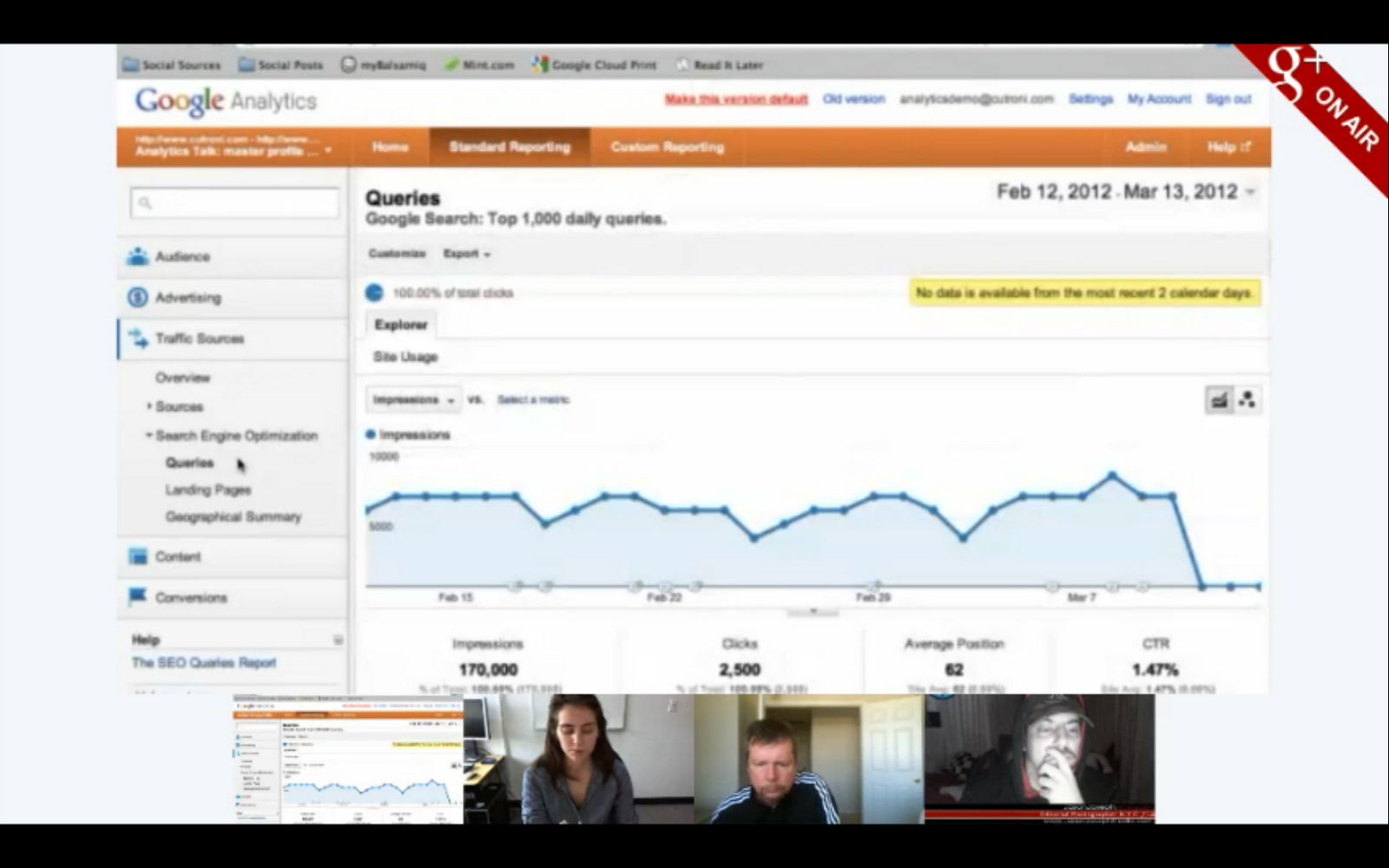
Justin shows us a feature that tells you how often you show up in Google’s organic search results and the number of click-throughs that you get.

To learn more about how to get started with Google Analytics, visit our Help Center. And remember to tune in to the live stream of our next Hangout at 11 a.m. PDT Wednesday, as we discuss how to use Hangouts (something a bunch of you guys have asked us to talk about!). We’ll be collecting your Hangout questions today on the Google+ Your Business page.

Posted by Vanessa Schneider, Google Places community manager